
Setup and Install
Supported Operating Systems
- Windows
- Macintosh (macOS)
⚠️ Important: Do not connect the USB cable until the installation process instructs you to do so.
To use the printer with your computer, the required drivers and software must be installed. The installation process usually takes about 20 minutes, depending on your system configuration and selected components.
Before You Start
Before beginning the installation, please follow these guidelines:
- Close all open applications.
- Log in using an Administrator account.
- Do not switch users during installation.
- An internet connection may be required.
- Your computer may restart during the process.
- If a restart occurs, do not remove the Setup CD-ROM. The installation will continue automatically.
Windows Installation
If the USB Cable Was Connected Too Early
Windows 7
- Disconnect the USB cable.
- Continue with Step 1.
Windows Vista / Windows XP
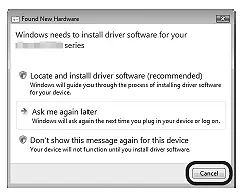
- Disconnect the USB cable.
- If a dialog box appears, click Cancel.
- Proceed with Step 1.
Easy-WebPrint EX (Windows)
This utility installs automatically with the printer software.
Requirements
- Internet Explorer 7 or later
- Active internet connection
Step 1: Prepare the Computer
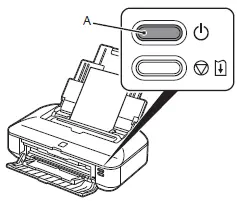
- Make sure the printer is turned off.
- Turn on the computer.
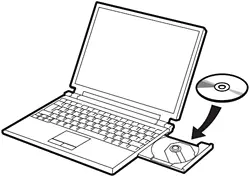
- Insert the Setup CD-ROM.
If the setup does not start automatically:
- Open Computer / My Computer
- Double-click the CD-ROM drive
- Run MSETUP4.EXE
Step 2: User Account Control
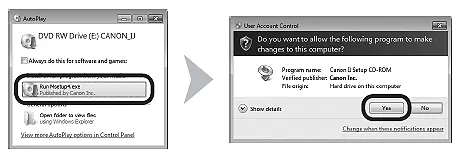
- Click Run MSETUP4.EXE
- Select Yes or Continue when prompted
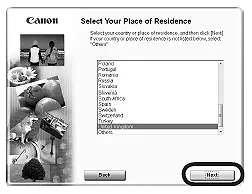
Step 3: Select Language and Region
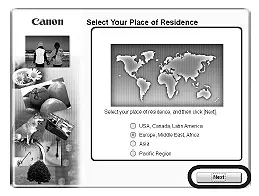
- Choose your location and country/region
- Click Next
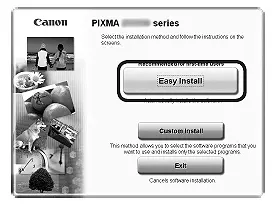
Step 4: Select Installation Type
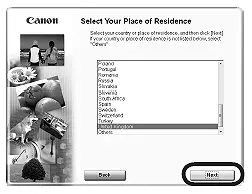
Easy Install (Recommended)
Automatically installs drivers, applications, and manuals.
Custom Install
Allows you to select specific items to install.
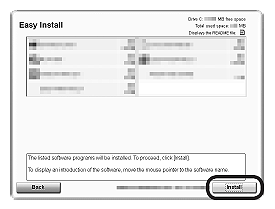
Step 5: Begin Installation
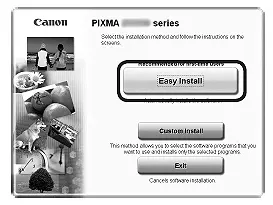
- Click Install
- Follow the on-screen instructions
USB Connection Step
When prompted:
- Connect the printer to the computer using a USB cable
- Turn ON the printer
(The USB port is located on the back-right side of the printer.)
Step 6: Paper Setup
- Extend the Paper Output Tray
- Load A4 or Letter-size plain paper into the Rear Tray
- Click Execute
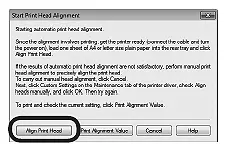
Step 7: Print Head Alignment
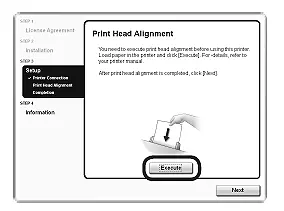
- Click Align Print Head
- Select OK to begin
The alignment process takes approximately 3 minutes.
⚠️ Do not open the top cover during alignment.
Step 8: Completion
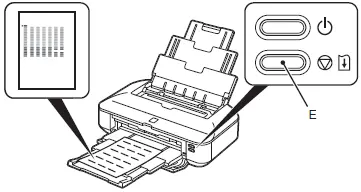
- Remove the printed alignment sheet
- Click Next
⚠️ If the orange Alarm light flashes:
- Press the RESUME/CANCEL button
- Click Next
Additional Notes
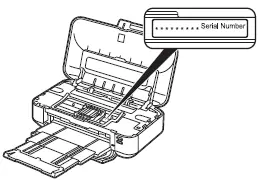
- If the serial number is not detected automatically, enter it manually.
- The serial number can be found inside the printer.
- When the printer is powered on and the top cover is opened, the Print Head Holder may move.
- User Registration appears only in Europe, the Middle East, and Africa.
- The Extended Survey Program is optional and does not affect printer functionality.
Step 9: Finish Installation
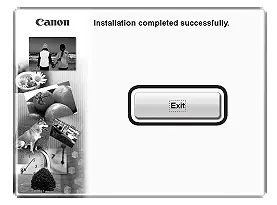
- Click Exit
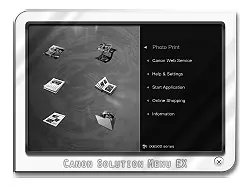
- Solution Menu EX will launch automatically
- Remove and safely store the Setup CD-ROM
Optional (Windows 7 / Vista SP1+)
To install the XPS Printer Driver:
- Choose Custom Install
- Select XPS Printer Driver
Macintosh (macOS) Installation
Easy-WebPrint EX (Mac)
This utility installs automatically with the printer software.
Requirements
- Safari 4 or later
- macOS 10.5 or newer
- Active internet connection
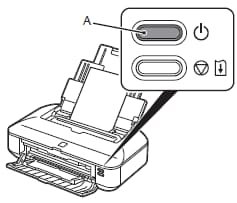
Step 1: Turn Off the Printer
- Press the ON button
- Wait until the printer completely shuts down
- Do not connect the USB cable yet
Step 2: Prepare the Mac
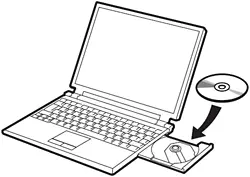
- Confirm the printer is turned off
- Turn on the Mac
- Insert the Setup CD-ROM
Step 3: Start Setup
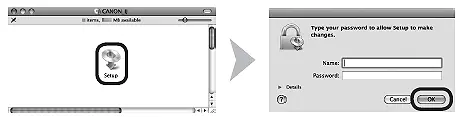
- Open the CD-ROM folder
- Double-click the Setup icon
- Enter the administrator username and password
Step 4: Select Language and Region
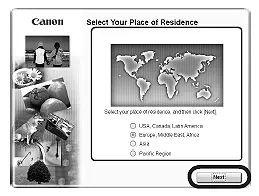
- Choose your location and country/region
- Click Next
Step 5: Select Installation Type
Easy Install
Automatically installs drivers, applications, and manuals.
Custom Install
Allows you to choose specific components.
Step 6: Install Software
- Click Install
- Follow the on-screen instructions
USB Connection Step
When prompted:
- Connect the USB cable
- Turn ON the printer
Step 7: Paper Setup
- Extend the Paper Output Tray
- Load A4 or Letter-size paper
- Click Execute
Step 8: Print Head Alignment
- Click OK to start
- Alignment takes approximately 3 minutes
⚠️ Do not open the top cover during alignment.
Step 9: Finish Setup
- Remove the printed alignment sheet
- Clear any alarm light if it appears
- Complete the installation
Step 10: Completion
- Click Exit
- Solution Menu EX will open automatically
- Remove and safely store the Setup CD-ROM